SharePoint Embedded Developer Guide 2026: Build Document Apps on Microsoft 365
A practical 2026 guide to SharePoint Embedded — create containers, read and write files via Microsoft Graph, integrate Power Automate, migrate content, and connect AI agents.
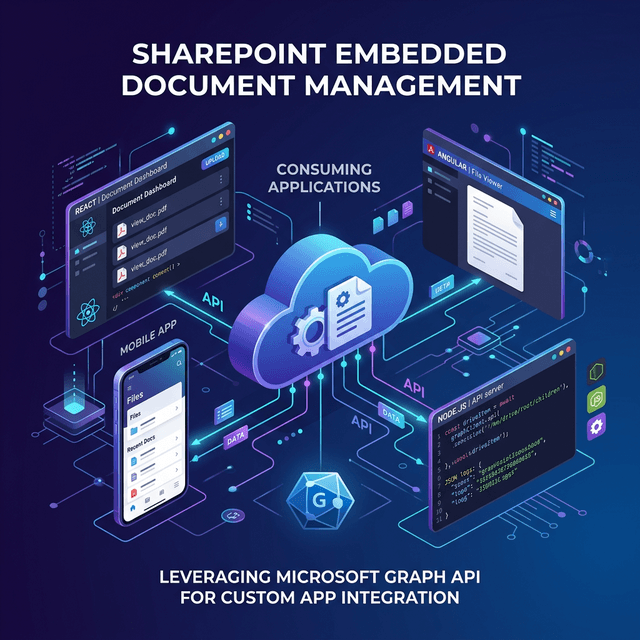
Why SharePoint Embedded Is the Right Foundation for Document Apps in 2026
Building document management into your application used to mean one of two bad choices: build your own storage infrastructure from scratch (expensive, slow, and missing the M365 ecosystem), or force your users to context-switch into a full SharePoint site (poor UX, license complexity, and tight coupling to the SharePoint product surface).
SharePoint Embedded solves both problems. It gives your application direct access to SharePoint's storage, permissions, and compliance engine through Microsoft Graph — without creating traditional SharePoint sites or requiring end-users to have SharePoint licenses.
The enterprise content management market reached USD 69.72 billion in 2025 and is projected to hit USD 145.51 billion by 2030, growing at a 15.85% CAGR (Fortune Business Insights). ISVs who embed document management now are building on infrastructure that already scales to 200 million+ SharePoint Online users (Medha Cloud, March 2026) — rather than maintaining their own.
Key Takeaways:
- SharePoint Embedded reached general availability in May 2024 and has shipped 12+ API improvements through early 2026.
- Containers (not sites) are the core storage unit — they expose the full Microsoft Graph file API.
- The Power Platform connector reached GA in February 2026, enabling no-code integration.
- Migration APIs promoted to v1.0 in November 2025 let you lift existing SharePoint content into containers.
- As of March 2026, AI integration uses Microsoft Foundry knowledge sources — not the deprecated agent SDK.
- Government cloud (GCC) support launched in November 2025.
---
Architecture: How SharePoint Embedded Works
SharePoint Embedded introduces two concepts you need to understand before writing a single line of code.
Container Types and Containers
A Container Type defines the schema and permissions model for a class of storage. Think of it as a template. You register it once per application in your provider tenant — the Azure/M365 tenant where your app is registered.
A Container is an instance of that container type — the actual storage bucket where files live. Containers are created inside consuming tenants, the M365 tenants of your customers who install your app. One container type can have containers spread across thousands of consuming tenants.
This split matters for multi-tenant ISV architecture:
Provider Tenant (your org)
├── App Registration (Entra ID)
└── Container Type (registered once)Consuming Tenant (your customer's org)
├── Container (created per app instance or workspace)
│   ├── /files/report.pdf
│   ├── /files/contract.docx
│   └── /subfolder/...
└── Container (another workspace for the same app)
Unlike SharePoint sites, containers do not appear in the SharePoint admin center by default. They are invisible to end users unless your application surfaces them.
API Surface
Everything goes through Microsoft Graph v1.0. There is no SharePoint REST API (/_api/) or CSOM for containers — Graph is the only supported path. The relevant endpoint family is fileStorageContainers:
GET  /v1.0/storage/fileStorage/containers
POST /v1.0/storage/fileStorage/containers
GET  /v1.0/storage/fileStorage/containers/{containerId}/drive/items/{itemId}/children
Column management APIs (create, list, update, delete custom columns on containers) were promoted from beta to Graph v1.0 in January 2026 (Microsoft Learn — What's New).
---
Setting Up Your Development Environment
You need:
- Node.js 20+ (for the TypeScript samples in this guide)
- Azure CLI or access to the Azure Portal for app registration
- SharePoint Embedded VS Code extension (optional but recommended)
- A Microsoft 365 developer tenant — the Microsoft 365 Developer Program provides a free 90-day renewable sandbox
Register Your App in Entra ID
- Go to Azure Portal → Microsoft Entra ID → App registrations → New registration.
- Choose Multitenant if you are building an ISV app that installs in customer tenants.
- Add a redirect URI for your app (e.g.,
http://localhost:3000/auth/callback).
- After registration, go to API permissions → Add a permission → Microsoft Graph and add:
-
FileStorageContainer.Selected (delegated) — for user-context operations-
Files.ReadWrite.All (application) — for app-only background jobsFor a full walkthrough of app registration and OAuth flows, see the Microsoft Graph API authentication guide and the OAuth 2.0 guide.
Register Your Container Type
Container types are registered via a SharePoint admin PowerShell cmdlet — this is a one-time step per application.
# Install SharePoint Online Management Shell if needed
Install-Module -Name Microsoft.Online.SharePoint.PowerShell -Scope CurrentUser# Connect to SharePoint admin
Connect-SPOService -Url "https://contoso-admin.sharepoint.com"
# Register a container type (provider tenant)
New-SPOContainerType
-ContainerTypeName "My Document App Workspace"
-OwningApplicationId "YOUR_ENTRA_APP_CLIENT_ID"
-ApplicationRedirectUrl "https://yourapp.com/auth/callback"
This returns a ContainerTypeId — store it. You will reference it when creating containers in consuming tenants.
---
Creating and Managing Containers with Microsoft Graph
Once your container type is registered and your app is authorized in a consuming tenant, you can create containers through Graph.
Create a Container
import { Client } from "@microsoft/microsoft-graph-client";Workspace: ${displayName}async function createContainer(
client: Client,
containerTypeId: string,
displayName: string
): Promise<string> {
const response = await client.api("/storage/fileStorage/containers").post({
displayName,
containerTypeId,
description:,
});
return response.id; // Store this containerId per customer workspace
}
List All Containers
async function listContainers(client: Client): Promise<any[]> {containerTypeId eq 'YOUR_CONTAINER_TYPE_ID'
const response = await client
.api("/storage/fileStorage/containers")
.filter()
.get();
return response.value;
}
Add Custom Columns (v1.0 as of January 2026)
Custom metadata columns on containers follow the same schema as SharePoint columns:
async function addTextColumn(/storage/fileStorage/containers/${containerId}/columns
client: Client,
containerId: string,
columnName: string
): Promise<void> {
await client
.api()Custom field: ${columnName}
.post({
name: columnName,
text: {},
description:,
});
}
---
Reading and Writing Files in Containers
Containers expose a Drive — the same OneDrive/SharePoint Drive entity you use for regular Graph file operations. If you already have Graph file code, it works here without changes.
Upload a File
async function uploadFile(/storage/fileStorage/containers/${containerId}/drive/root:/${fileName}:/content
client: Client,
containerId: string,
fileName: string,
fileContent: Buffer
): Promise<string> {
// For files under 4MB — use upload session for larger files
const response = await client
.api(
)
.put(fileContent);
return response.id;
}
List Files in a Folder
async function listFiles(/storage/fileStorage/containers/${containerId}/drive/items/${folderId}/children
client: Client,
containerId: string,
folderId: string = "root"
): Promise<any[]> {
const response = await client
.api(
)
.select("id,name,size,lastModifiedDateTime,file,folder")
.get();
return response.value;
}
Download a File
async function downloadFile(/storage/fileStorage/containers/${containerId}/drive/items/${itemId}/content
client: Client,
containerId: string,
itemId: string
): Promise<Buffer> {
const response = await client
.api(
)
.getStream();
// Collect stream chunks into a buffer
const chunks: Buffer[] = [];
for await (const chunk of response) {
chunks.push(Buffer.from(chunk));
}
return Buffer.concat(chunks);
}
Permission management on items follows standard Graph sharing and permission APIs — the same patterns covered in the SharePoint Online permissions guide.
---
Power Platform Connector: No-Code Integration (GA February 2026)
The SharePoint Embedded connector for Power Platform reached general availability in February 2026 (Microsoft Learn — What's New). This lets you trigger Power Automate flows on container events and read/write files without custom code.
Using the Connector in Power Automate
- In Power Automate, create a new flow and search for the SharePoint Embedded connector.
- Authenticate with a connection that has FileStorageContainer.Selected
permission.
- Use the When a file is created or modified in a container trigger.
- Add actions: Get file content, Create file, or Update file metadata.
A practical pattern is triggering document processing when a file lands in a container:
Trigger: SharePoint Embedded — When a file is created in a container
  └── Action: Apply to each (files in event)
       ├── Action: Get file content (SharePoint Embedded connector)
       ├── Action: Extract text (AI Builder — document processing model)
       └── Action: Create item (SharePoint list — metadata log)
For a full Power Automate patterns reference, see the Power Automate expressions cheat sheet and the document approval workflow guide.
---
Migrating Existing SharePoint Content to Containers
Migration APIs promoted to Microsoft Graph v1.0 in November 2025 (Microsoft Learn — What's New) enable lift-and-shift of existing SharePoint document libraries into containers. This is the key enabler for ISVs who want to consolidate customer document silos.
Migration Job Pattern
async function startMigrationJob(/storage/fileStorage/containers/${targetContainerId}/migrate
client: Client,
sourceLibraryUrl: string,
targetContainerId: string
): Promise<string> {
const job = await client
.api()/storage/fileStorage/containers/${containerId}/migrate/${jobId}`
.post({
sourceUrl: sourceLibraryUrl,
conflictBehavior: "rename", // or "replace", "fail"
});
return job.id; // Poll this job ID for status
}async function getMigrationStatus(
client: Client,
containerId: string,
jobId: string
): Promise<string> {
const status = await client
.api(
)
.get();
return status.status; // "inProgress", "completed", "failed"
}
What migrates: Files, folder structure, version history (configurable), and metadata columns where the schema matches. Permissions do not migrate — you will need to re-apply permissions at the container level after migration.
For provisioning patterns that can complement a migration workflow, see the SharePoint provisioning automation guide.
---
AI Integration via Microsoft Foundry (March 2026)
The previous SharePoint Embedded agent SDK was deprecated in March 2026 in favor of connecting containers directly as a Microsoft Foundry knowledge source (Microsoft Learn — What's New). If you were using the old agent SDK, you need to migrate.
How Foundry Knowledge Sources Work
Instead of writing custom RAG (retrieval-augmented generation) code, you register your container as a knowledge source in Microsoft Foundry. Foundry indexes the files and exposes them to Copilot agents through a standard retrieval API.
Cost model: Each agent interaction is billed at $0.12 per interaction (12 Copilot Studio messages at $0.01 per message) (Microsoft Learn — Billing Meters). This is predictable — you pay per interaction, not per indexed document.
Registering a Container as a Knowledge Source
// This uses the Microsoft Foundry SDK (preview as of April 2026)
// Check the Foundry documentation for the latest API surfaceasync function registerKnowledgeSource(
  foundryClient: any,
  containerId: string,
  knowledgeSourceName: string
): Promise<void> {
  await foundryClient.knowledgeSources.create({
    name: knowledgeSourceName,
    type: "sharepointEmbedded",
    configuration: {
      containerId,
      indexingMode: "automatic", // Re-indexes on file change
    },
  });
}
Once registered, the Copilot agent can answer questions grounded in the actual files in your containers — without you managing embeddings, chunking, or vector stores.
---
Billing and Cost Modeling
SharePoint Embedded billing has two components: storage and API operations. There is no per-seat license for end users.
| Meter | Rate (approx.) |
|---|---|
| Active container storage | Per GB/month (same as SharePoint Online storage) |
| Archived container storage | Lower rate — suitable for compliance archives |
| Agent interactions (Foundry) | $0.12 per interaction |
| Graph API calls | No additional charge beyond M365 subscription |
Cost comparison vs. Azure Blob Storage: Azure Blob gives you raw storage, but SharePoint Embedded adds permissions, versioning, audit logs, retention policies, eDiscovery, DLP, and Copilot/agent compatibility — all included. For ISVs in regulated industries, the compliance overhead avoided easily justifies the storage premium.
Architect for cost: Use archived storage containers for documents older than your active window (e.g., 2+ years). The Graph migration APIs can move items between active and archived containers on a schedule.
---
GCC and Government Cloud Support (November 2025)
SharePoint Embedded reached GCC (US Government Community Cloud) availability in November 2025 (Microsoft Learn — What's New). ISVs serving US federal, state, and local government customers can now offer container-based document management that meets FedRAMP Moderate requirements.
What works in GCC: Container creation and management, file CRUD via Graph, the Power Platform connector, and migration APIs. What is not yet in GCC: Some Foundry AI features — check the Microsoft GCC feature matrix for the current state before committing to an AI roadmap for government customers.
---
Frequently Asked Questions
Do my end users need SharePoint licenses to use SharePoint Embedded?
No. End users accessing your application do not need SharePoint Online licenses. The billing is at the application level (storage and API meters), not per user. This is one of the key advantages for ISVs — you can offer document features to customers without requiring them to have M365 E3/E5 plans.
What is the difference between SharePoint Embedded and a regular SharePoint document library?
A SharePoint document library lives inside a SharePoint site, appears in the SharePoint admin center, and is navigable by users with site access. A SharePoint Embedded container is invisible to end users by default, managed entirely through your application's UI, and does not consume a SharePoint site license. The underlying storage and compliance infrastructure is the same — your files get the same DLP, eDiscovery, retention policies, and audit logs.
How does authentication work for multi-tenant apps?
Your provider tenant hosts the app registration. When a consuming tenant installs your app (via admin consent), they grant your app access to create containers in their tenant. Your app then uses delegated or application OAuth tokens scoped to the consuming tenant to manage containers and files there. See the Microsoft Graph OAuth 2.0 guide for the token flow details.
Can I use SharePoint Embedded in a Teams app or Viva Connections extension?
Yes. A Teams tab or SPFx web part can call Graph to interact with SharePoint Embedded containers using the same APIs. The file picker component from the Microsoft 365 OneDrive/SharePoint developer platform can be embedded in Teams tabs to let users browse container contents with familiar UI. Containers also work in Teams meeting apps if your scenario involves collaborative document review.
What happened to the SharePoint Embedded agent SDK?
It was deprecated in March 2026. Microsoft replaced it with the Microsoft Foundry knowledge source integration, which provides a more capable and maintained path for AI-powered document Q&A over container content. If your app used the agent SDK, migrate to Foundry knowledge sources before the retirement deadline — check the What's New page for the exact end-of-support date.
---
The Bottom Line
SharePoint Embedded is now the cleanest path for ISVs and enterprise developers who need document management inside their own applications. The v1.0 Graph API is stable and growing, the Power Platform connector removes the need for custom integration code in many scenarios, and the Foundry integration gives you production-grade AI document retrieval without building your own RAG pipeline.
The biggest mindset shift is containers vs. sites. Once you stop thinking in sites and start thinking in containers, the architecture becomes straightforward: one container type per application, one container per customer workspace or project, and Graph for all CRUD operations.
Start with the Microsoft Graph API getting started guide to get your Graph client set up, then use the code in this guide to create your first container and upload a file. From there, layer in the Power Platform connector if you need no-code workflows, and plan your migration strategy if you have existing SharePoint libraries to consolidate.
For governance considerations as your SharePoint Embedded app scales to multiple tenants, the enterprise governance checklist covers audit, retention, and compliance practices that apply directly to container-based storage.